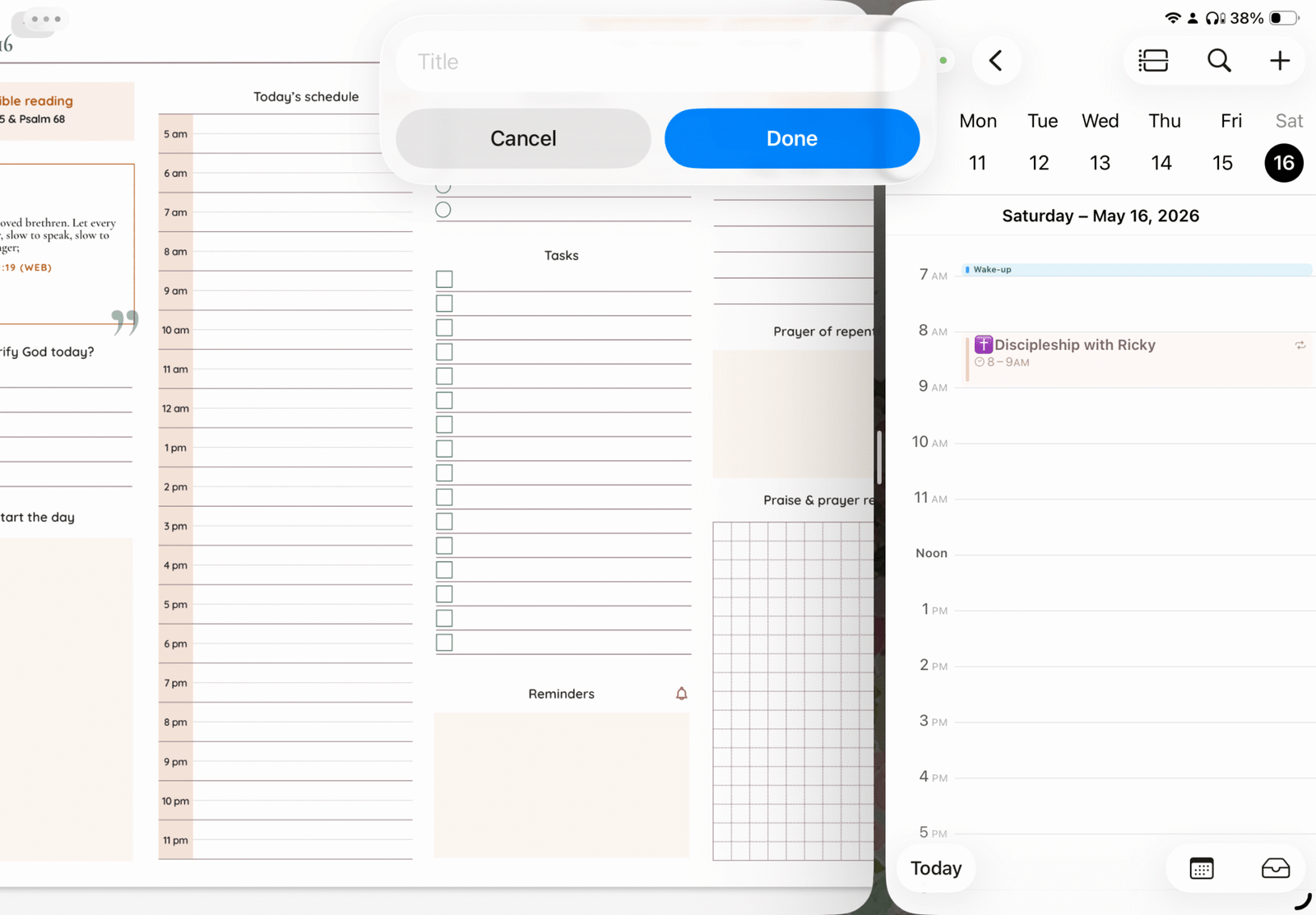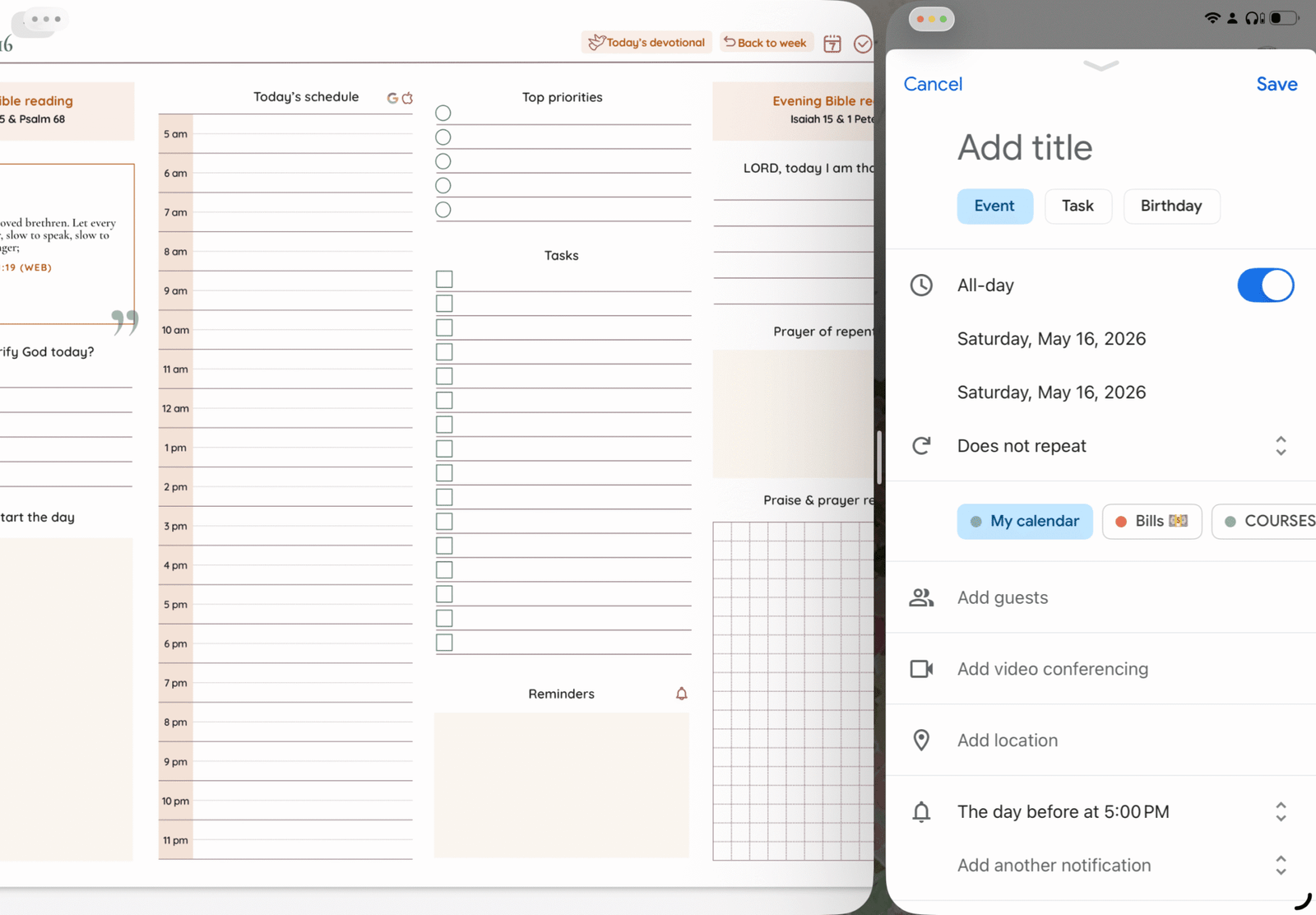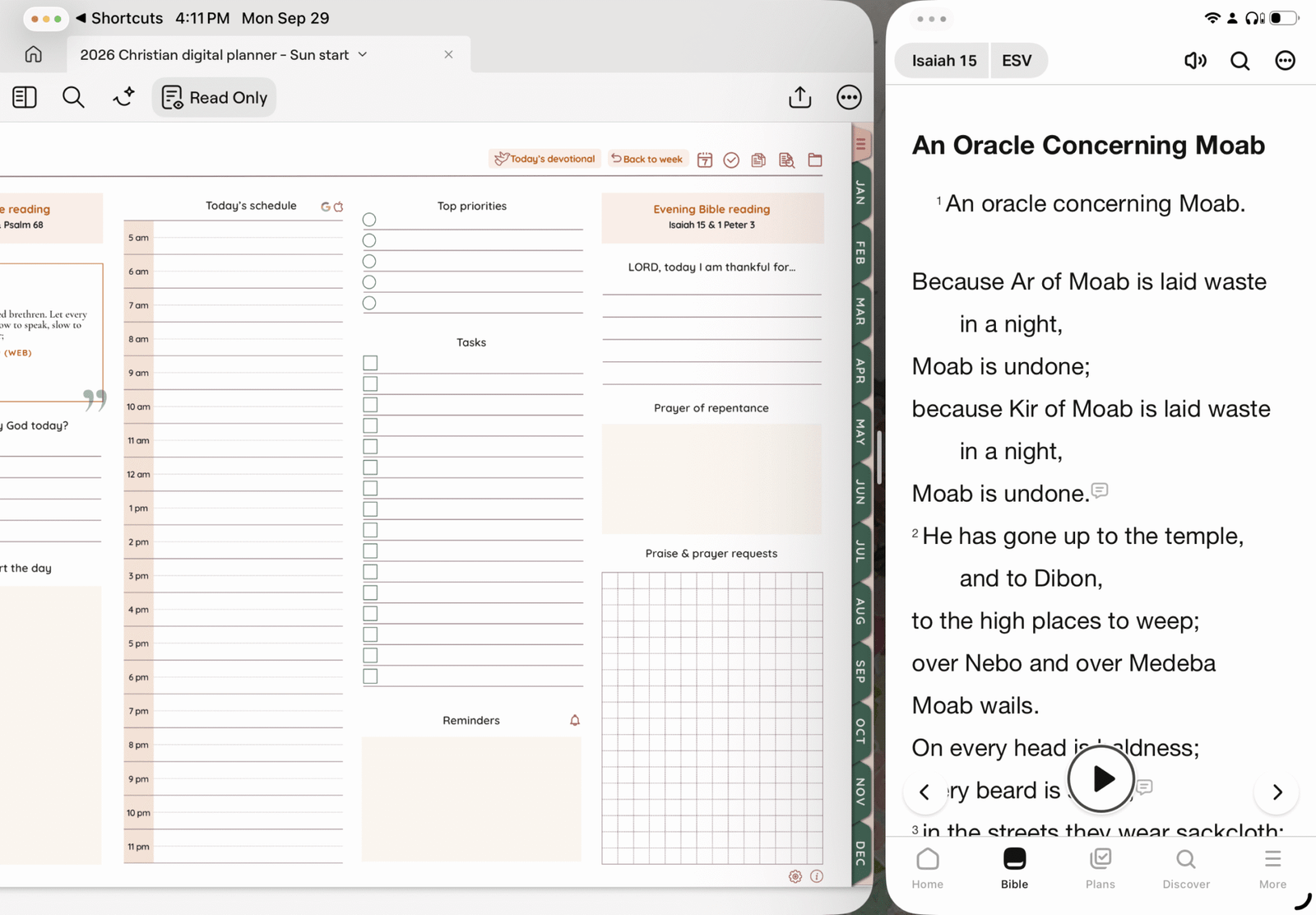

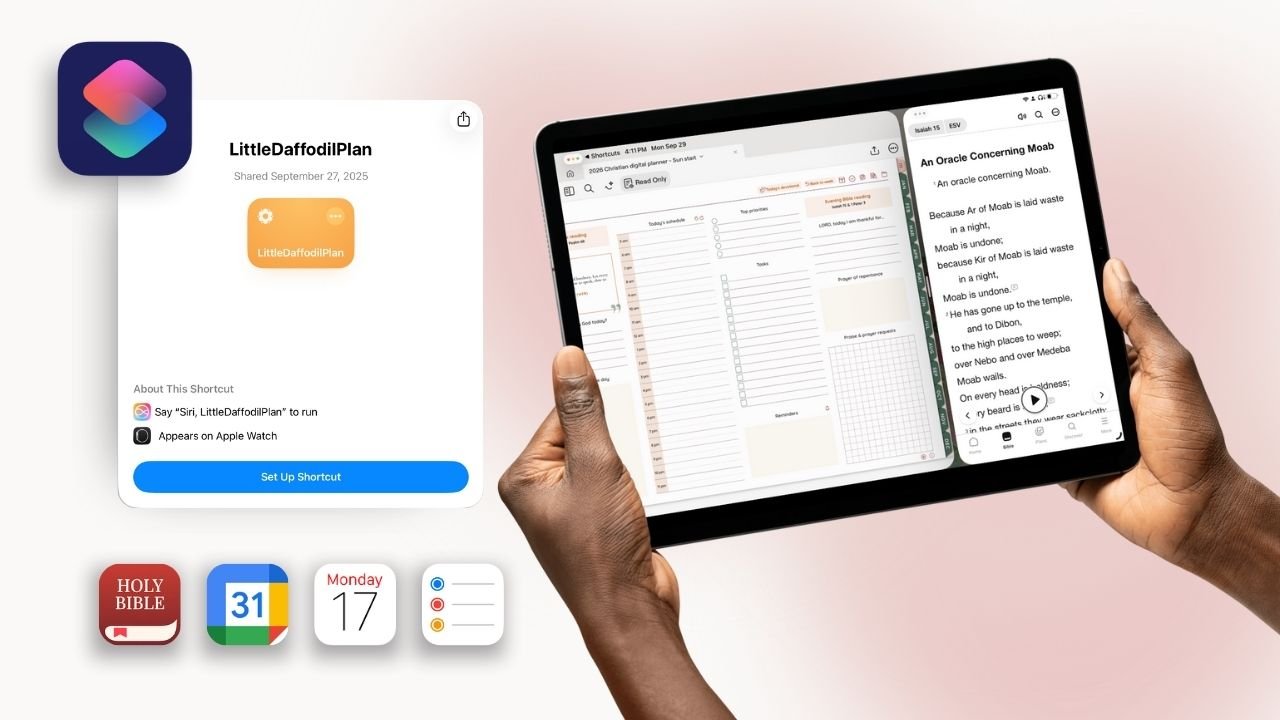
Our digital planners typically come with a Shortcut to allow integration with various apps such as Google Calendar, Apple calendar, Reminders, and the Bible app. This integration is quite useful as it allows you to add events, reminders and open you Bible directly to a specific passage from your planner.
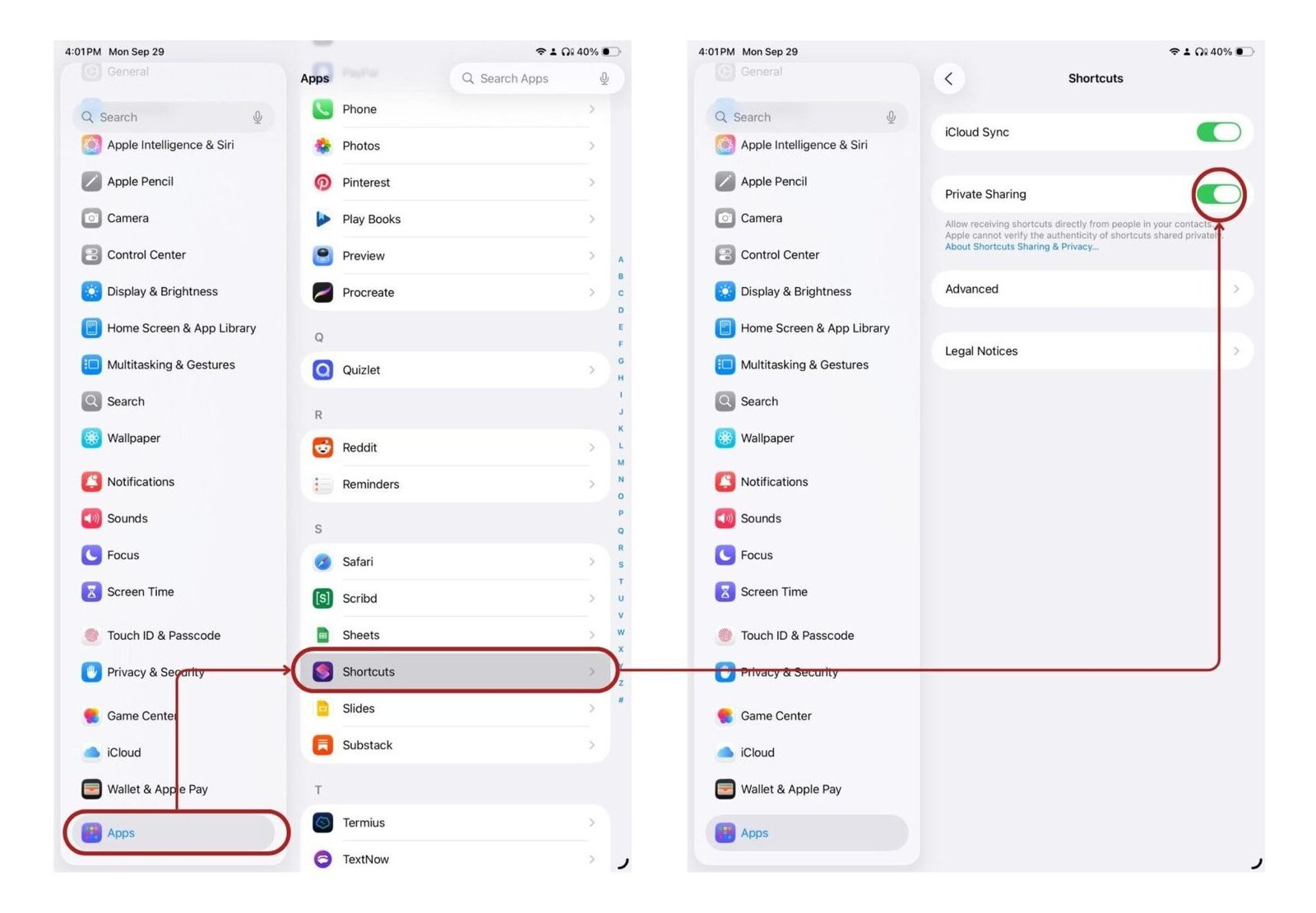
Step 1. Turn on private sharing
Go to your iPad Setting > Apps > Shortcut > Turn on Private sharing
You can always turn it off once you have installed the shortcut.
Step 2. Add our Shortcut
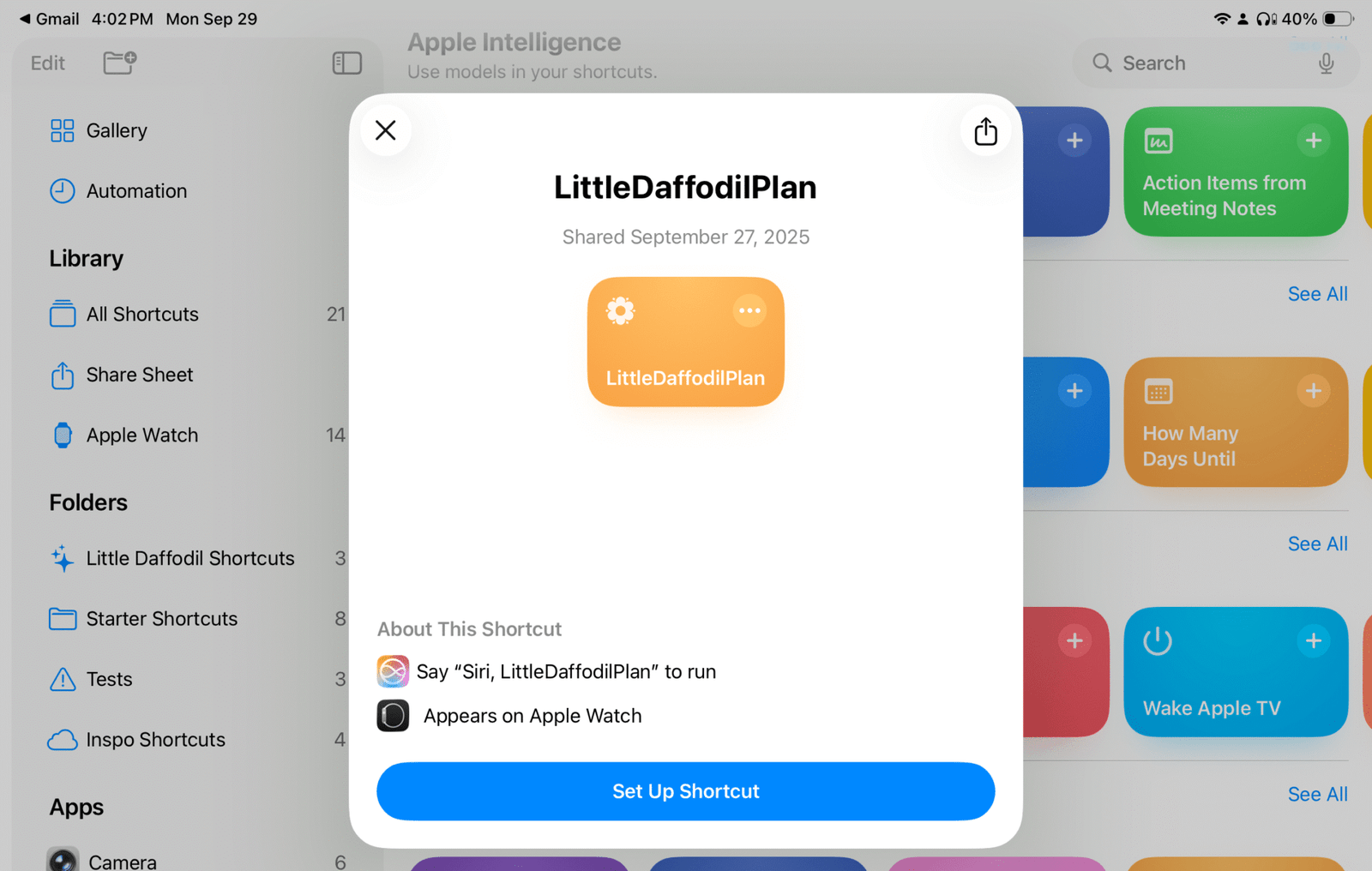
On the Download page PDF, you’ll find a link to add the LittleDaffodilPlan to your iPad. Tap the link, and a notification box (like the one shown below) will appear asking you to set up the shortcut.
Tap Set Up Shortcut to continue.
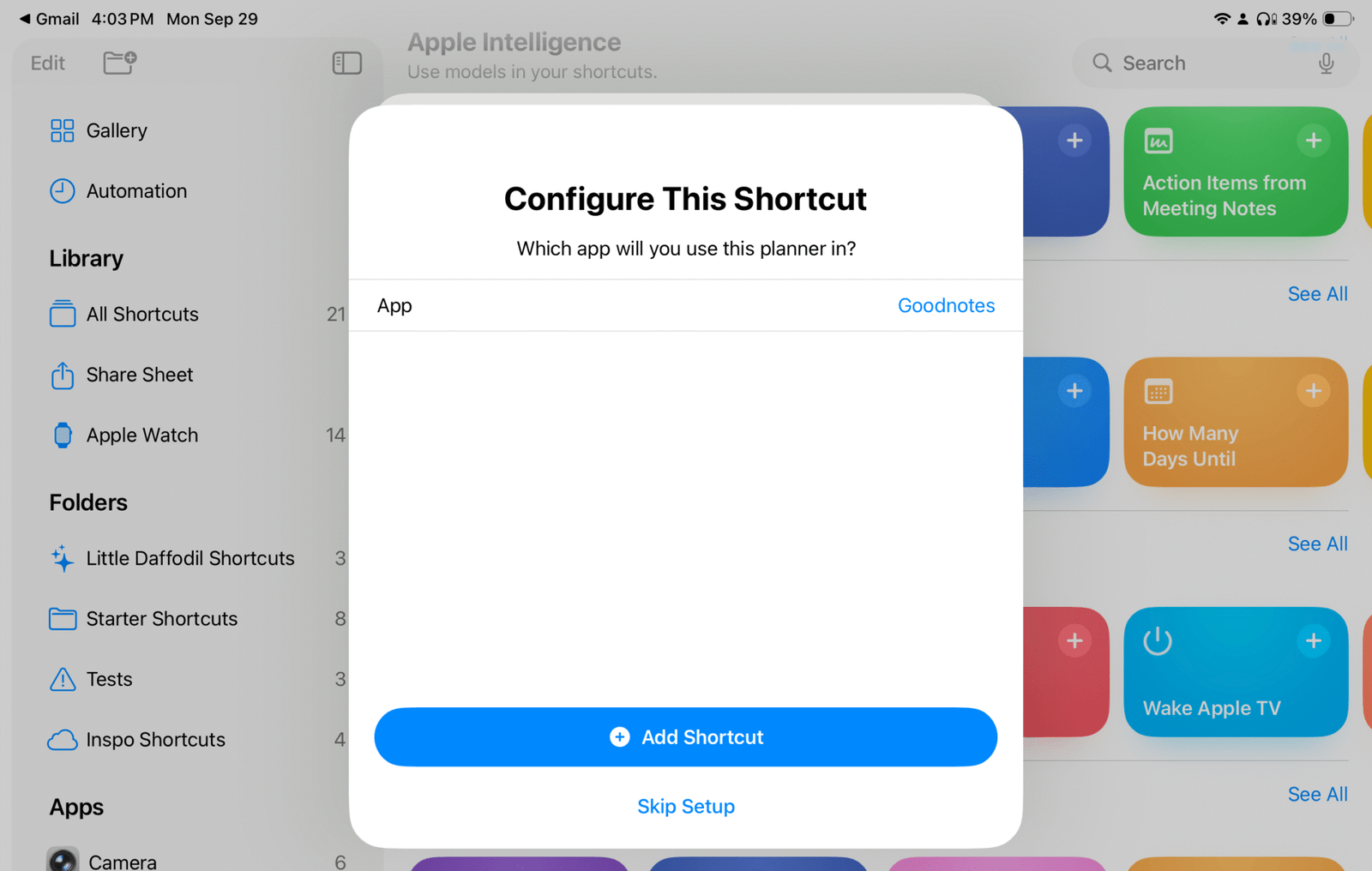
You’ll then be asked to choose the note-taking app you use. The default option is GoodNotes, but if you use another app, tap the Goodnote link to view and select your preferred note-taking app.
Step 3. install /update your apps
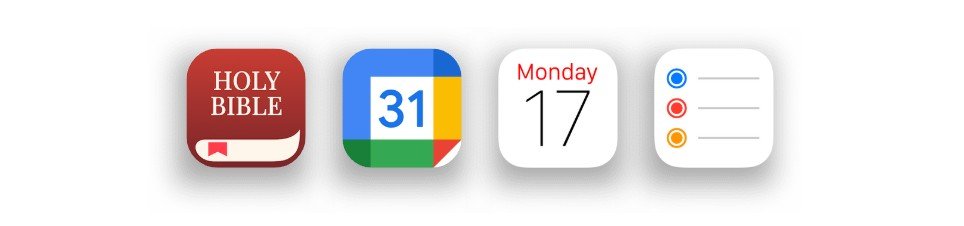
Before you start using the shortcut, make sure that your Bible app, Google Calendar, Apple calendar and Reminders are installed and up to date.