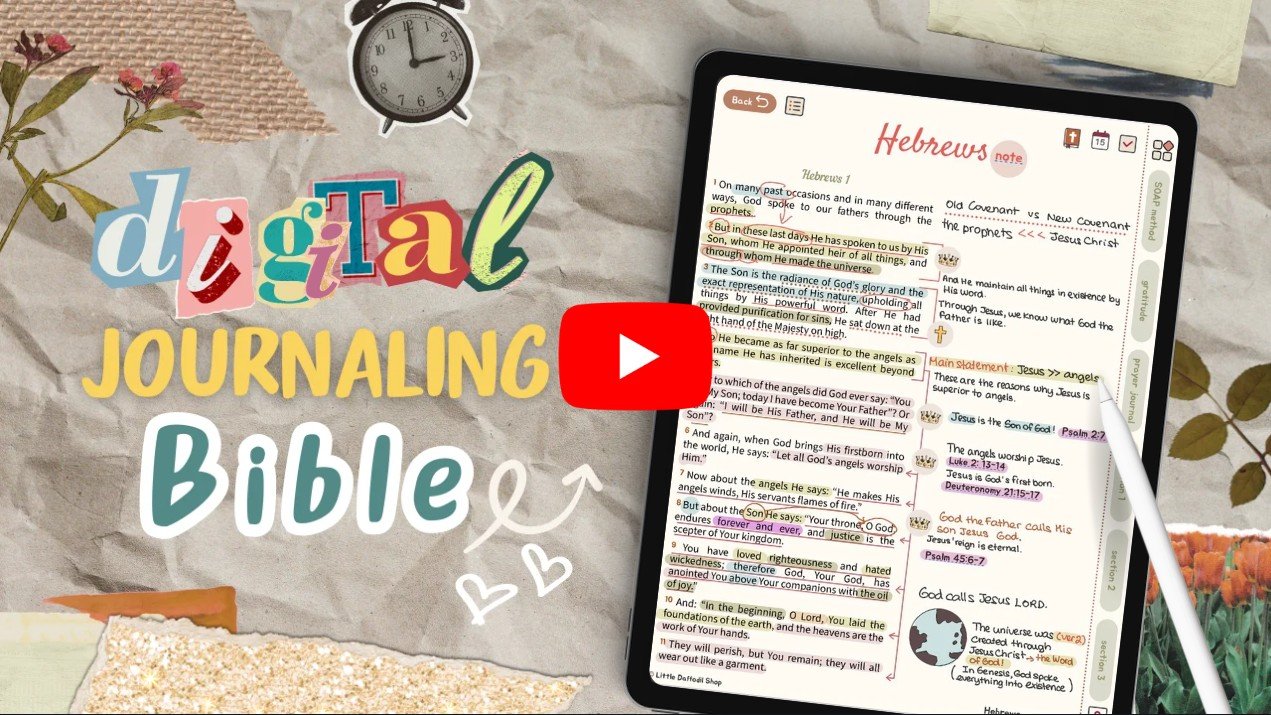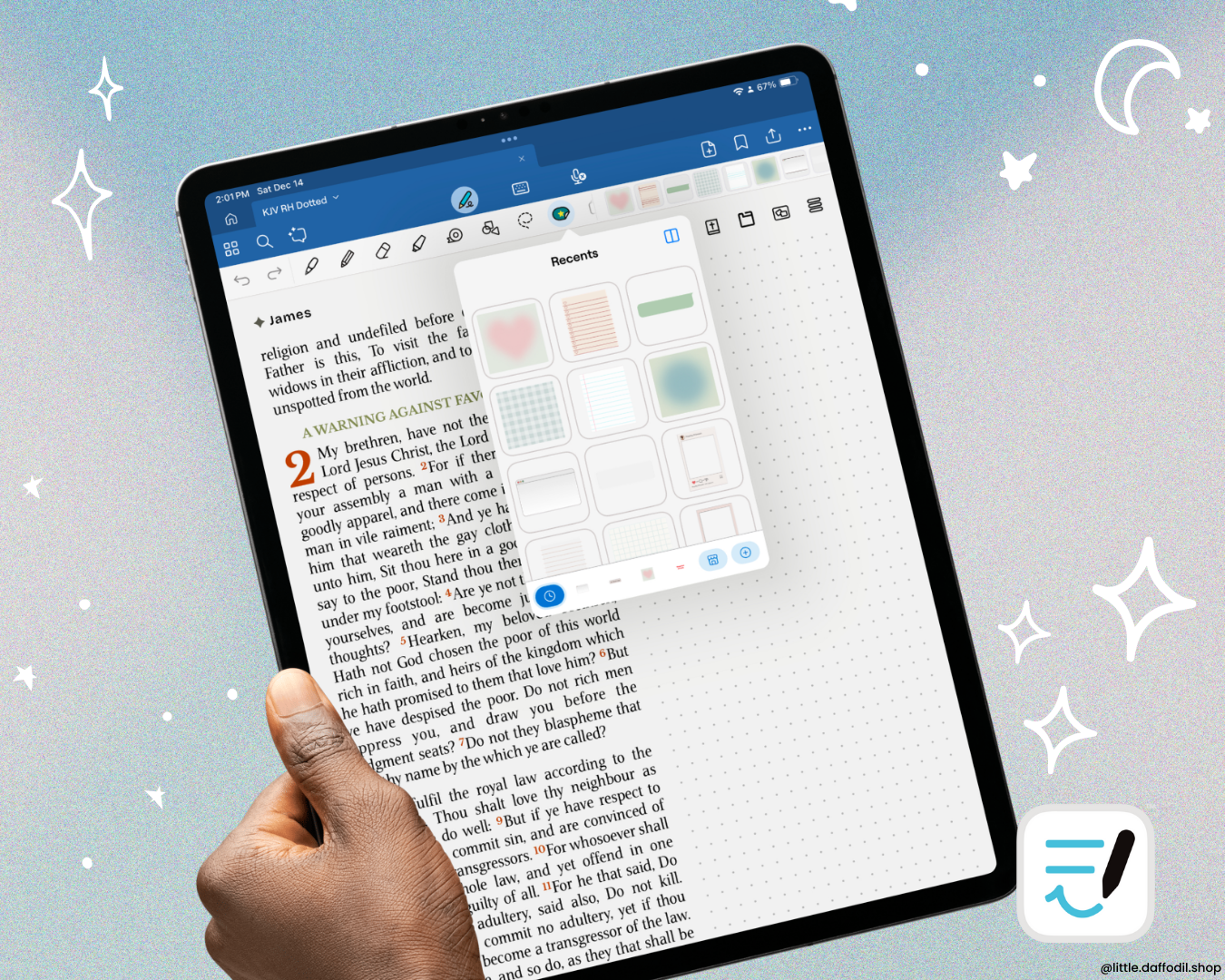

One thing I really like about digital Bible journaling in Goodnotes is the ability to create internal links between pages. This allows for easy navigation and is super handy when cross-referencing passages. In this short tutorial, I am going to show you how to create internal links in Goodnotes for imported PDFs, notebooks, and whiteboards.
💡Note: This feature is exclusive to Goodnotes 6 and later versions. If you have the older version, make sure to update your app to use this feature.
- Turn on writing mode to display the writing toolbar.
- Select the Text tool and type the text you want to use as your link.
- Double-tap or select the text, tap the Three Dots (…) icon from the pop-up menu, and select Link.
- Tap Link Settings and under Page, select the page you want to link to.